
Trader Workspace
by VigyaanVest.com
v1.0 · for Chrome & Edge
One connected pro-trader workspace — Symbol 360 research, a market calendar with alerts, and a live news tape — unified into a single, local-first browser extension for US ($) and India (₹) markets.
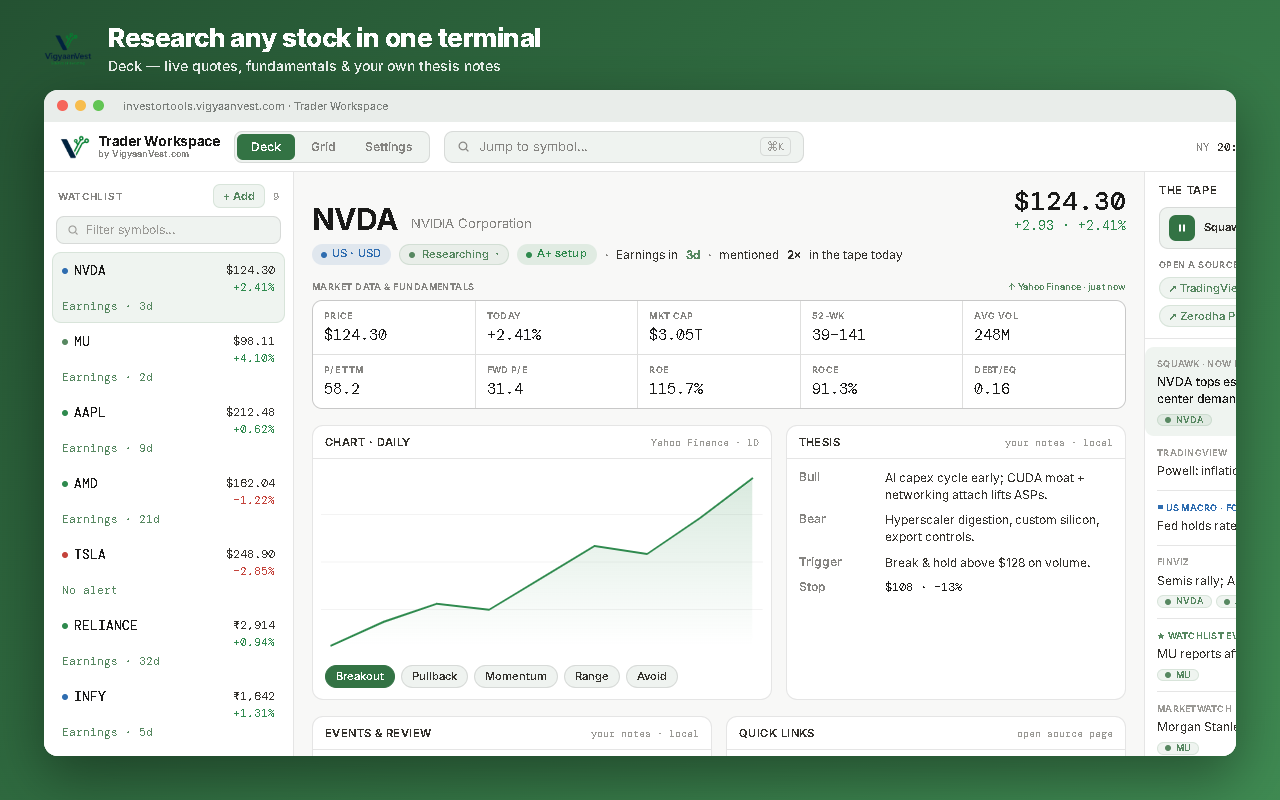
Deck — live quotes, fundamentals & your thesis notes
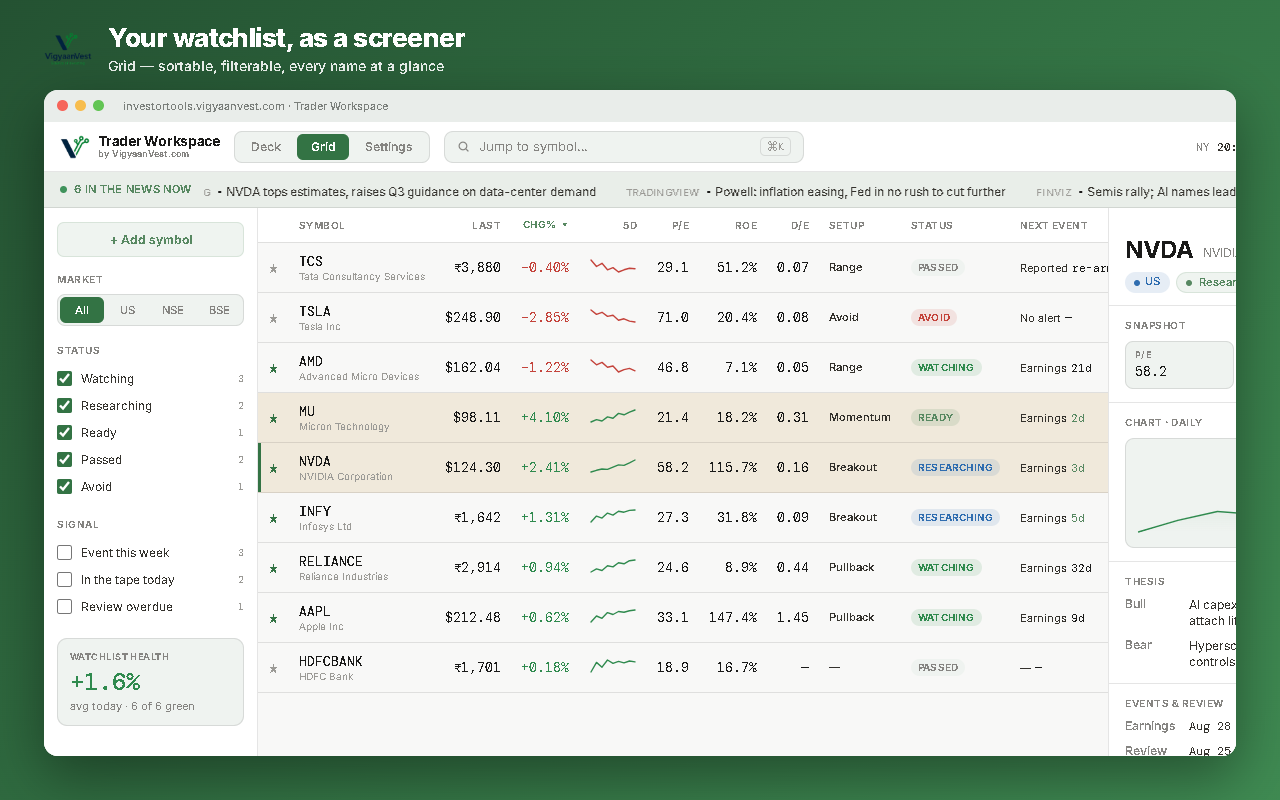
Grid — your watchlist as a sortable screener
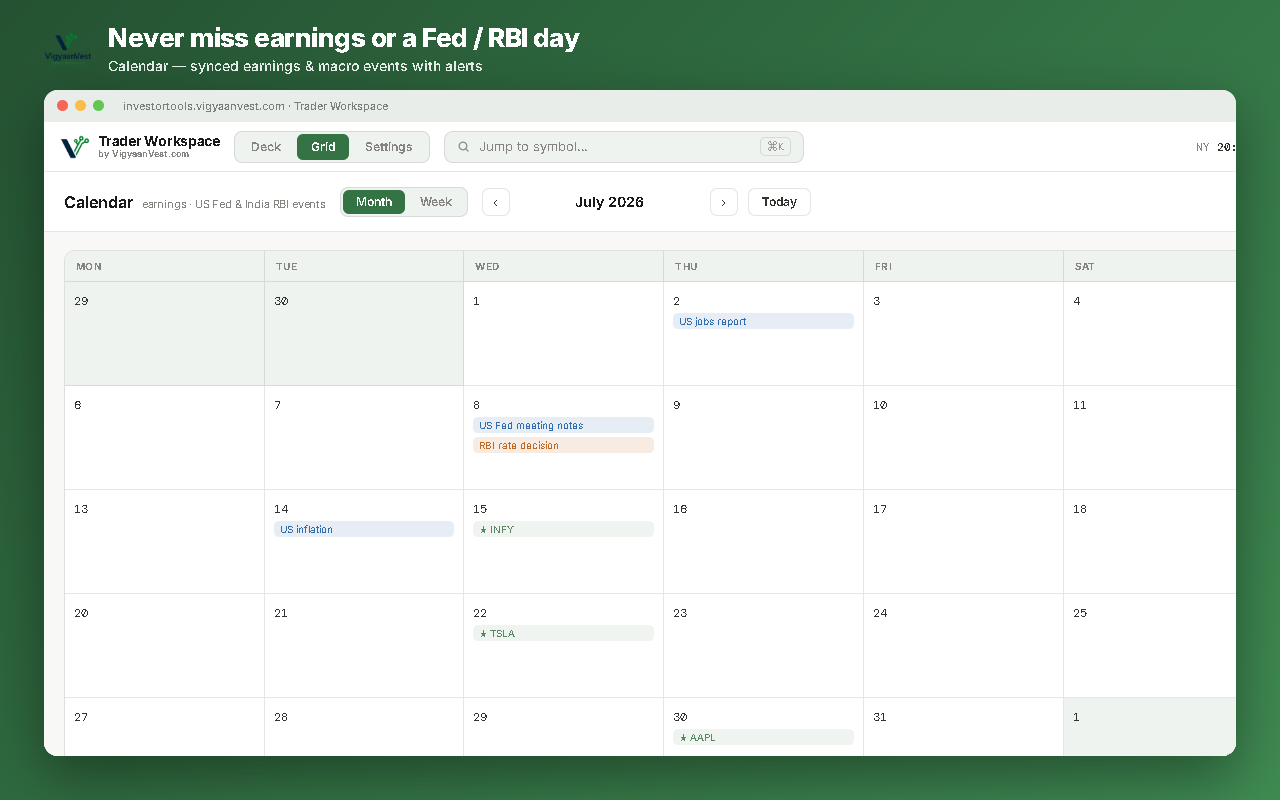
Calendar — earnings & macro with desktop alerts
The Tape — live headlines + read-aloud
A look inside ›
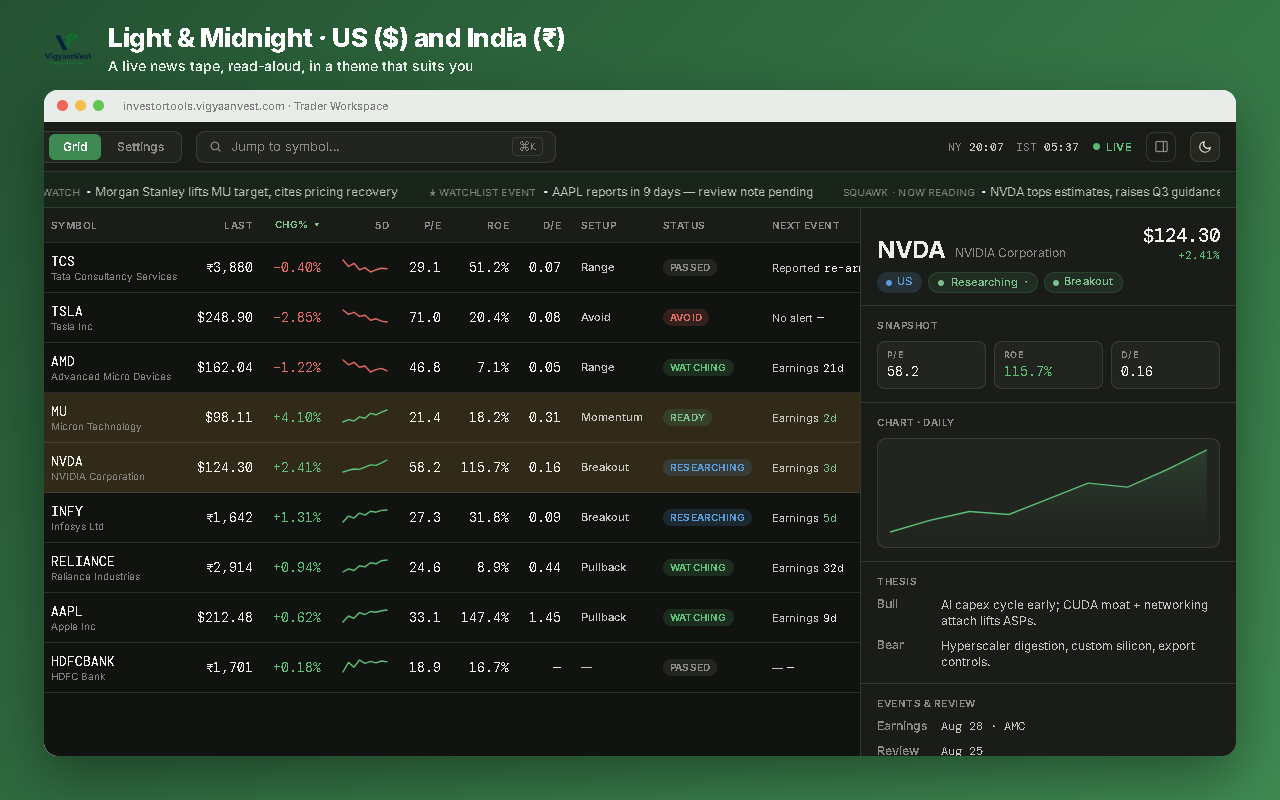
Swipe / scroll to see Deck, Grid, Calendar, Dock & Midnight →
Free · ~90 KB · local-first. Not on the store yet — quick manual install below.
Install in about 2 minutes
- Download the file above and unzip it — you'll get a
trader-workspacefolder. - Open your browser's extensions page: type
chrome://extensions(Chrome) oredge://extensions(Edge) in the address bar and press Enter. - Turn on Developer mode (the toggle on that page).
- Click Load unpacked and select the
trader-workspacefolder. - Click the VigyaanVest icon in your toolbar to open the workspace.
How to use it
Add & find stocks
- Press Ctrl+K (Mac: ⌘+K) or click + Add to open the search.
- Type a ticker and press Enter to open it. Type one that isn't on your list to add it.
- For India, add the suffix:
TCS.NS(NSE) orRELIANCE.BO(BSE). No suffix = US. - Use the Filter symbols… box in the watchlist to narrow the list by ticker, name, or tag.
Deck — research one stock
- Click a symbol in the watchlist to load live price, fundamentals, a chart, and your notes.
- Everything in the right panels is editable and saved locally: change Status (dropdown), pick a Setup chip, and click the Bull / Bear / Trigger / Stop / Review text to type.
- Add tags by typing in the tags box and pressing Enter.
- Use Quick links to open Yahoo / Finviz / Screener / TradingView for that symbol.
Grid — screen your whole watchlist
- Switch to Grid (top bar) to see every name as a sortable table.
- Click a column header to sort (click again to reverse).
- Use the left filters — Market, Status, Signal (event this week / in the tape / review overdue).
- Click a row for the detail drawer, then Open in Deck to dive in.
The Tape — live news + read-aloud
The Tape only fills while a supported news site is open in a tab — that's how it reads headlines.
- In the Deck's right rail, click a source under “Open a source to feed the tape” — TradingView, Finviz, MarketWatch, or Zerodha Pulse. Headlines start streaming in.
- Click ▶ on the Squawk bar to read the top headlines aloud.
- In Settings → The Tape: choose voice / rate / volume, and turn on “Remember what was read” so ▶ doesn't repeat (or Clear read history to start over).
Calendar — earnings & macro events
- The strip at the bottom of Deck shows the next ~12 trading days. Click Open full calendar for Month / Week.
- Move through time with ‹ ›, or click Today to jump back to the current month/week.
- Click a ★ watchlist earnings entry to open that stock in Deck.
- It syncs automatically twice a day; force it any time with Settings → Data & sync → Sync now.
Alerts — earnings & macro reminders
Alerts are automatic for the stocks on your watchlist — no per-stock setup.
- Add a stock to your watchlist and its next earnings auto-arms a desktop reminder.
- Set how far ahead and the time of day in Settings → Calendar & alerts (and toggle which US / India macro events alert you).
- Allow notifications for your browser in your OS settings so reminders can show.
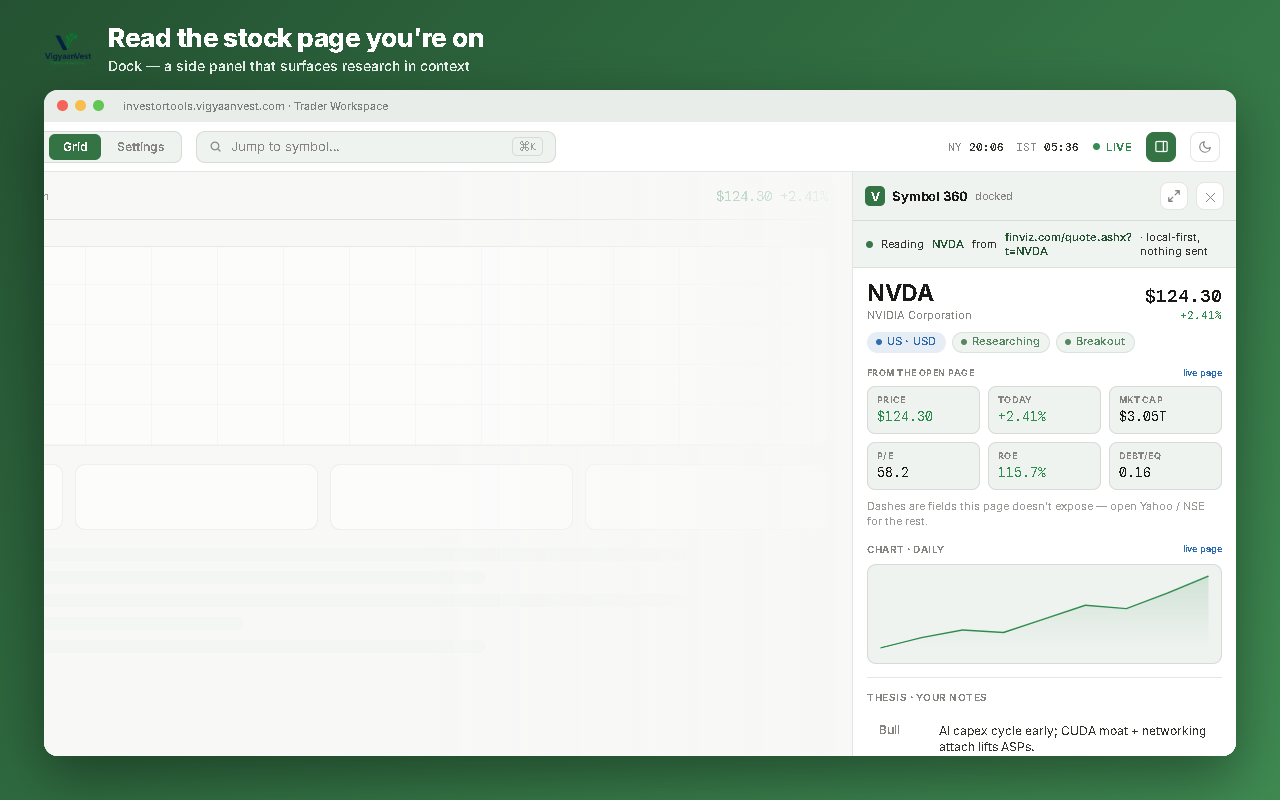
Dock — read the page you're on
- While viewing a stock page (Yahoo Finance, Screener.in, NSE, SEC), open the Dock (panel icon, top-right) — it reads that page's key metrics into a side panel.
- Click Open in full terminal to jump into the full Deck for that symbol.
Settings, themes & backup
- Toggle Light / Midnight with the moon icon (top-right), or in Settings → Appearance (also default view & density).
- Research options: show the TradingView chart embed, and read metrics from the open page (Dock).
- Back up your watchlist, notes & settings: Settings → Data & sync → Export backup (JSON); restore with Import (merge).
Everything you enter stays in your browser — nothing is uploaded.